Page overview
Setting up your Echo device
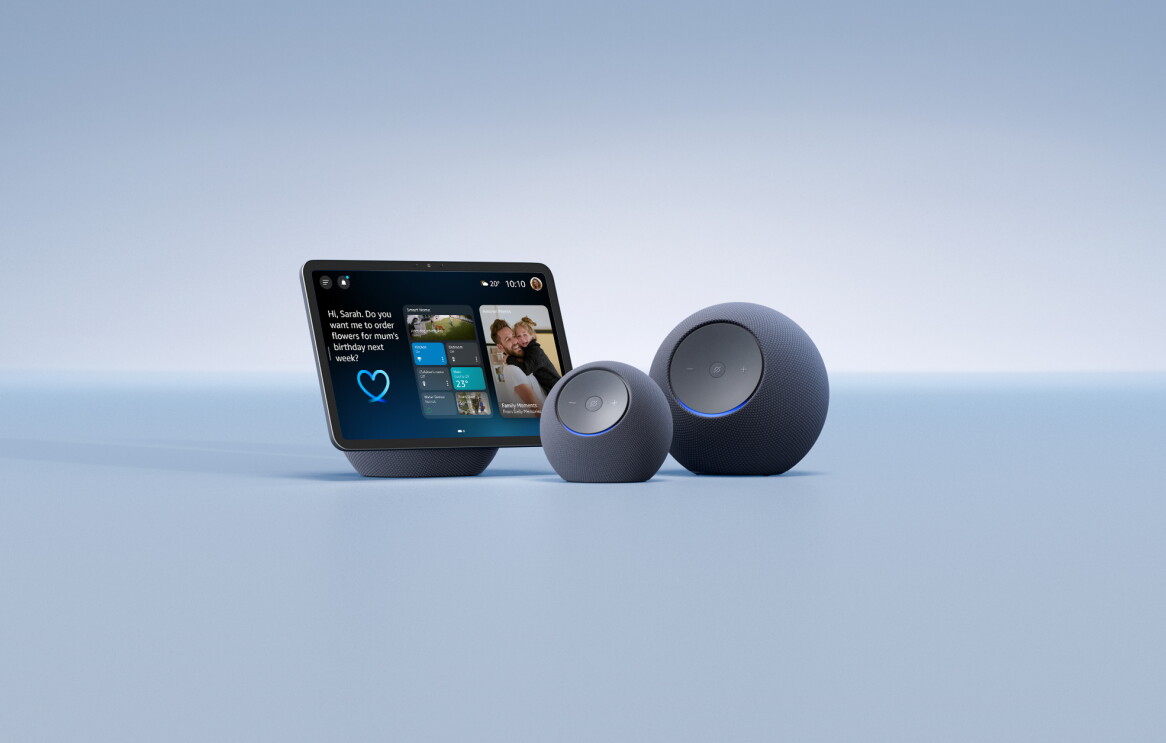
Setting up an Echo device is fairly simple, but the process varies slightly depending upon which one you have.
If you're setting up an Echo smart speaker that doesn't have a screen, like an Echo Spot, simply plug it in and open up the Alexa app. Then, follow the instructions in the app to connect your device. The device should appear right away when you open the app, but if it doesn't, hit the “More” tab and press “Add a Device”. Follow the on-screen prompts to add your speaker.
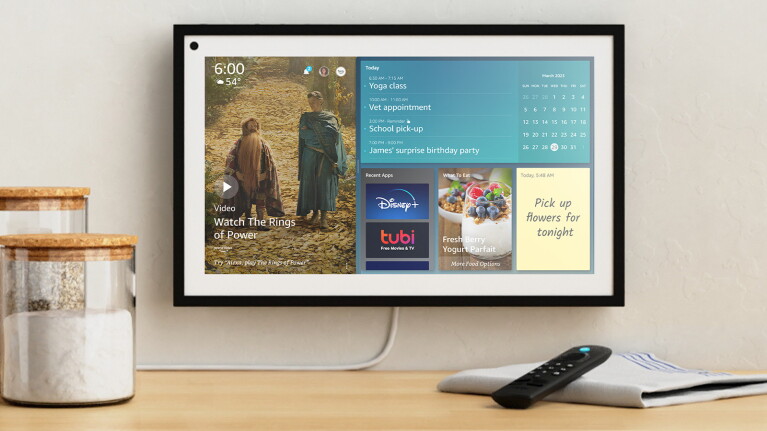
If you're setting up an Echo device with a screen, such as an Echo Show 8, then plug it in, turn it on, and follow the instructions on the device itself. This will include entering your Wi-Fi information and signing in to your Amazon account.
Once your Echo device is set up, there are multiple ways you can actually use it - how you use it, again, will depend on what kind of device it is.

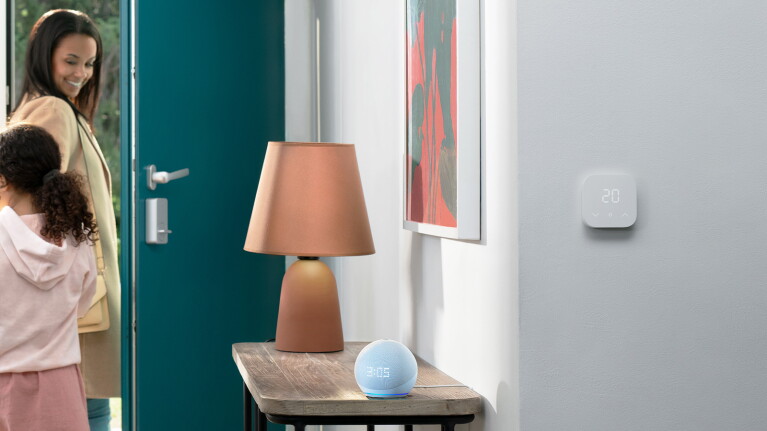
If your Echo device does not have a screen, you'll enable the device by saying your chosen wake word, which by default is “Alexa”. You can then ask Alexa to do things like play music, set alarms, answer questions, control your Alexa-enabled smart home devices, and more.
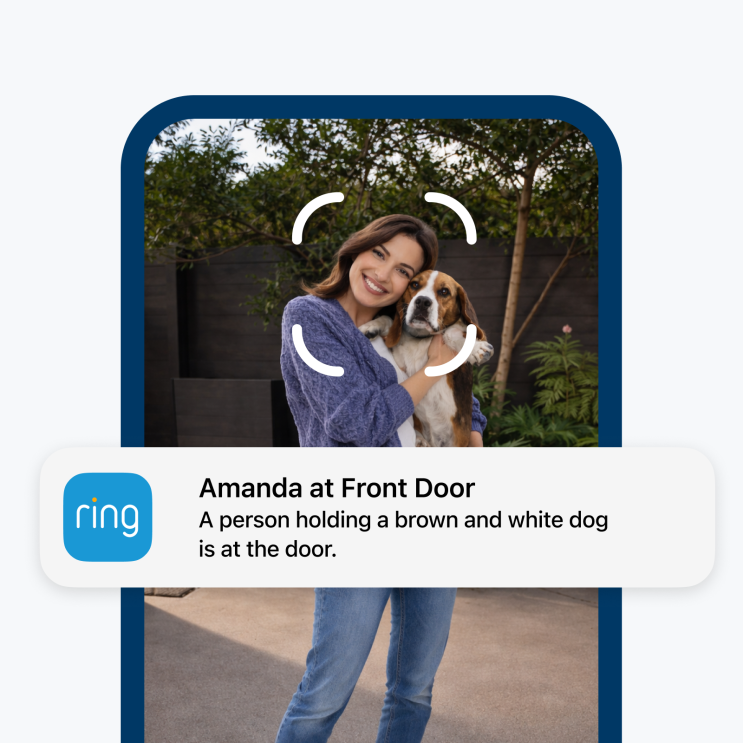
If your Echo device has a screen, you'll be able to use Alexa via voice as described above, but you’ll also be able to do and experience even more through the smart display. For instance, Alexa can display recipes, show you videos or images that answer questions, display footage from Alexa compatible devices like your Ring doorbell, and more.
Want a deeper look at how to use Alexa on your Echo device? Here are some tips and tricks to get the most out of your new device.
Set up Alexa profiles: Alexa Profiles gives each person in your home their own individual Alexa experience. You can create an Alexa Profile for you and your family members when setting up your device. This means Alexa will be able to access preferred music streaming services, Alexa skills, and more when someone in the household asks Alexa to do something. To create Alexa profiles, open up the Alexa app and select the 'More' tab, then tap 'Settings' > 'Your Profile & Family' > 'Add someone else'.
Add Alexa skills: Alexa skills are like Alexa apps. By adding Alexa skills, Alexa can do even more to expand and personalise your Alexa experience. For instance, you can add Alexa skills to play games, order takeaways, and more. To search for Alexa skills, open up the Alexa app, select the 'More' tab, then tap 'Skills & Games'. You'll then be able to browse through skills and search for new ones.
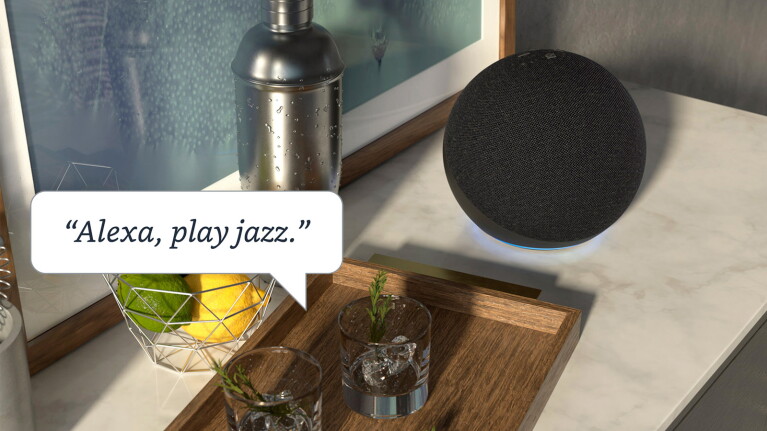
Customise the wake word: If you don’t want to use “Alexa” as your wake word, you can change it to “Amazon”, “Echo”, or “Computer”. You can use alternate wake words on all Echo devices. To do this, open up the Alexa app and select the 'Devices' tab, then tap 'Echo & Alexa'. Then choose your device, tap 'Settings' in the top right corner, and scroll down to 'Wake Word'. You can then choose from the wake words.
Control smart home devices: Alexa can play an important part in any smart home, helping control or automate a number of different smart home devices, including lights, cameras, thermostats, and more. To connect Alexa to your smart home devices, open up the Alexa app and select the 'Devices' tab. Then tap on the '+' button on the top right and follow the prompts to add new devices.
Set up routines: Routines are shortcuts for Alexa, helping automate your everyday by grouping together a bunch of actions so you don’t have to ask for each one individually. There are many ways to activate 'Routines'—via voice, time of day, with your smart home devices, when you turn off your alarm, and more. For example, you could create a 'Good Morning Routine' that turns on the lights, tells you the weather, and starts your favourite playlist when your alarm goes off. To create an Alexa Routine, open up the Alexa app, select the 'More' tab and tap 'Routines', following the prompts to designate how you want the Routine to be enabled and what actions will be taken.
Listen to music around the home: You can listen to music on all the Echo devices around your home, if you want to. This is done through setting up 'Groups', which Alexa can then use to sync music across all of your Echo devices at once. To set up speaker Groups, open the Alexa app, select the 'Devices' tab and scroll down to 'Groups'. You can then add the specific Echo devices you want to be in the group. Then, you can ask Alexa to play music in a specific group.
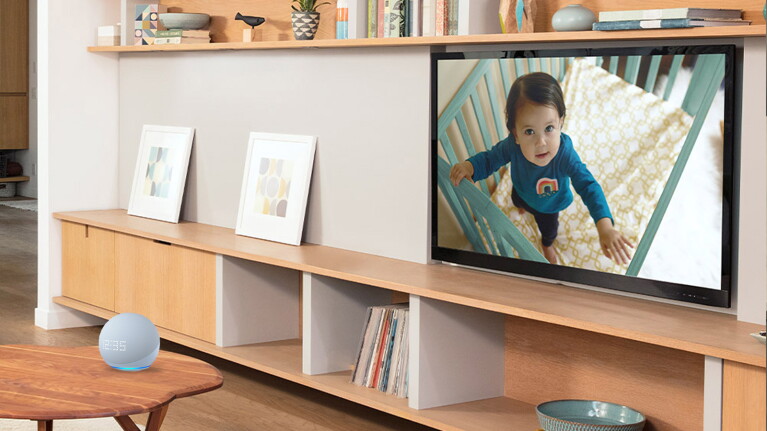
Use Alexa as an intercom: Alexa devices can also be used as an intercom system in your home, allowing you to communicate with others in your house. To use Alexa as an intercom, simply open the Alexa app and tap the 'Devices' tab. Then tap 'Echo & Alexa' and select your device. Then tap 'Communications' to enable these features.
Once it's set up, you can ask Alexa to make an 'Announcement', which enables you to broadcast one-way messages to all of the other supported Echo devices in your household, or you can 'Drop In' on Echo devices around your home for two-way communication.
Order items from Amazon: Ordering items from Amazon is a lot easier with Alexa. You can ask Alexa to add specific items to your basket for you with just your voice. To enable Alexa Shopping, open up the Alexa app and select the 'More' tab, then tap 'Settings' > 'Account Settings' > 'Voice Purchasing' and tweak the settings from there.
Stories we think you’ll like